


Change Windows Password
The Windows password is valid for 24 months. Before it expires, e-mails are sent with an appropriate warning in a defined time frame. Information for password length, complexity, and other safety information are summarized on this page. As long, as it is still valid, the password can be changed via:
- How can I change the Windows Passwort in Windows 10?
- How can I change the Windows Password in a Parallels RAS session?
- How can I change the Windows Password in Outlook Web Access (OWA)?
- How can I change the old saved password in Outlook?
After expiration, the password can only be changed in Windows itself and thus only within GSI.
How can I change the Windows Passwort in Windows 10?
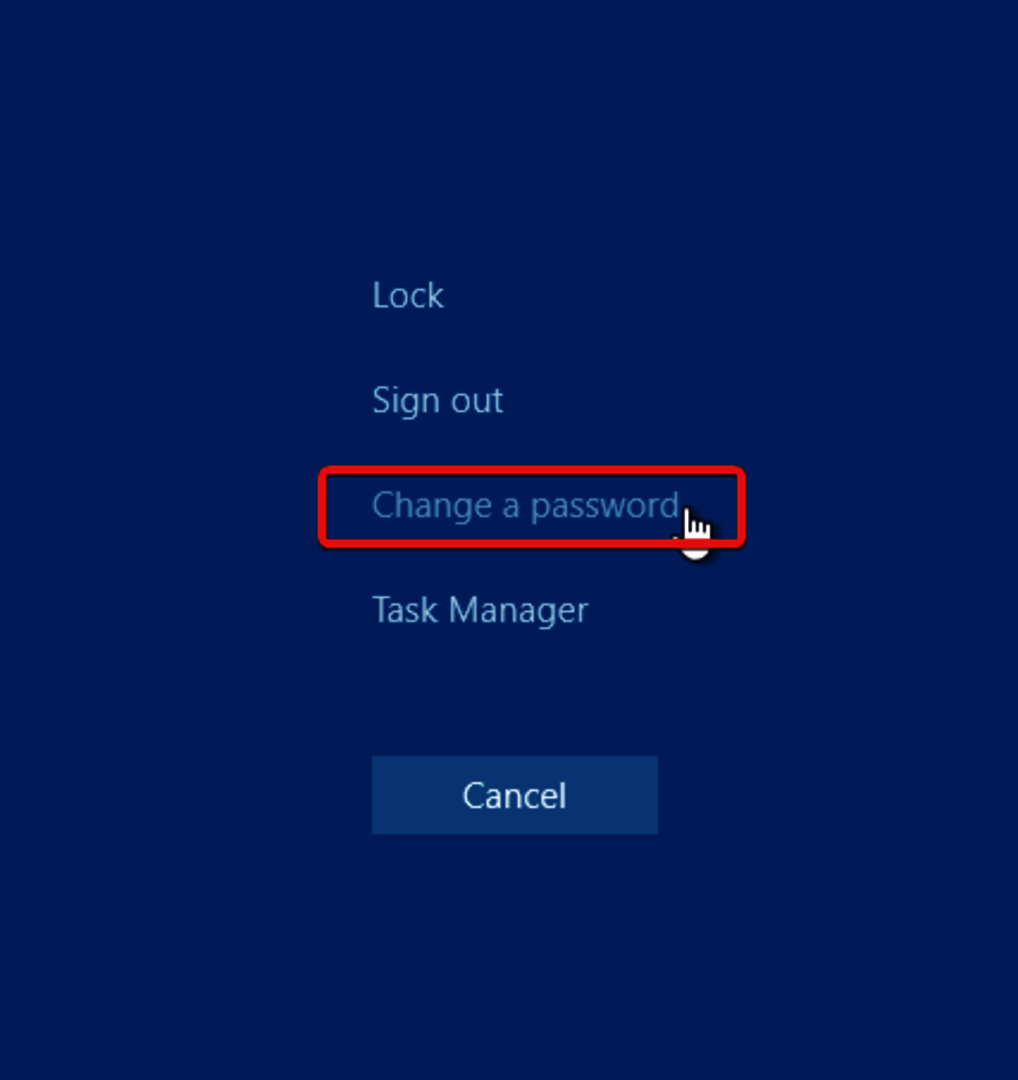
After login please use the shortcut:
Ctrl + Alt + Delete (or Ctrl + Alt + End in a Remote Desktop Connection)
The following screen appears:
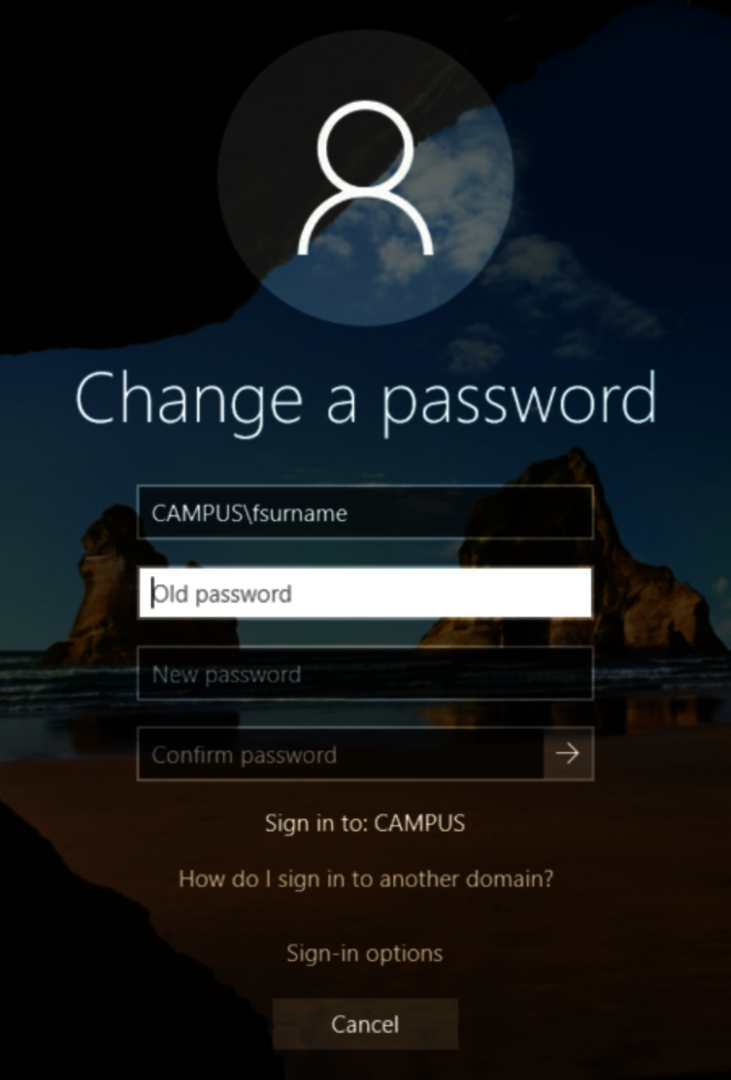
Now you can change your password or from another user (not for a localadmin account!). The username of the current user is automatically entered:

Specops Password Policy Manager is used to visualize Windows password policies applied at GSI and FAIR. The tool will be automatically displayed when a password is changed via Windows security (CTRL+ALT+DEL) and directly provides an overview of already met and missing requirements for a new password.

Changing the password in a Parallels RAS session
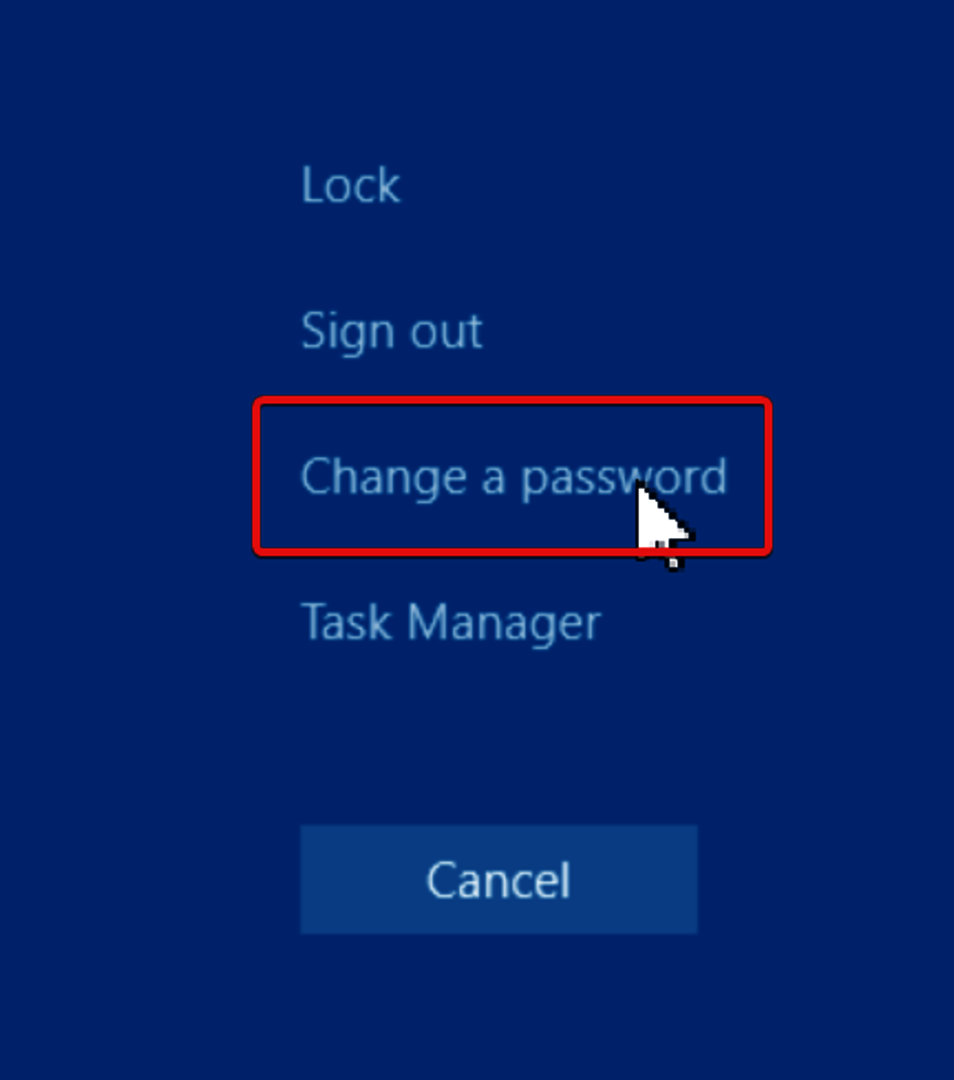
After logging in to a terminal server, please press the Ctrl+Alt+Del key combination.
How can I change the Windows Password in Outlook Web Access (OWA)?
You must first be logged into Outlook Web Access (OWA) to change your Windows password.
Exchange 2016: Settings - Options - General - My Account - Change Your Password
How do I change the old saved password in Outlook?
No password should be entered in Outlook, so there is no need to change your password.
If a login dialog appears in Outlook: Have you received any messages today or in the past few days about upcoming maintenance work on the Exchange servers? If so, please wait for the message indicating that the maintenance work has been completed.
If a login dialog box appears even though no maintenance work has been carried out, for example because you have changed your password in Windows, please log out of Windows and log back in again. If Outlook continues to ask for your password, please open the “Control Panel” (press the Windows key and type: control).
In the Control Panel, open “Credential Manager.” In the dialog box that appears, select “Windows Credentials” and check whether any login data related to Microsoft Office is still stored there. If this is the case, please delete the corresponding login data. Then close all Outlook windows and restart Outlook.
If the login dialog still appears in Outlook, please create a ticket and include your device name.